
Remove Text from Image with AI
Remove text from an image you have permission to edit by describing the words and their location. The AI regenerates the area behind them, so compare the result with the original.
Remove Text from Image with AI prompts
Load a sample and its instruction, then replace it with your own authorized picture.
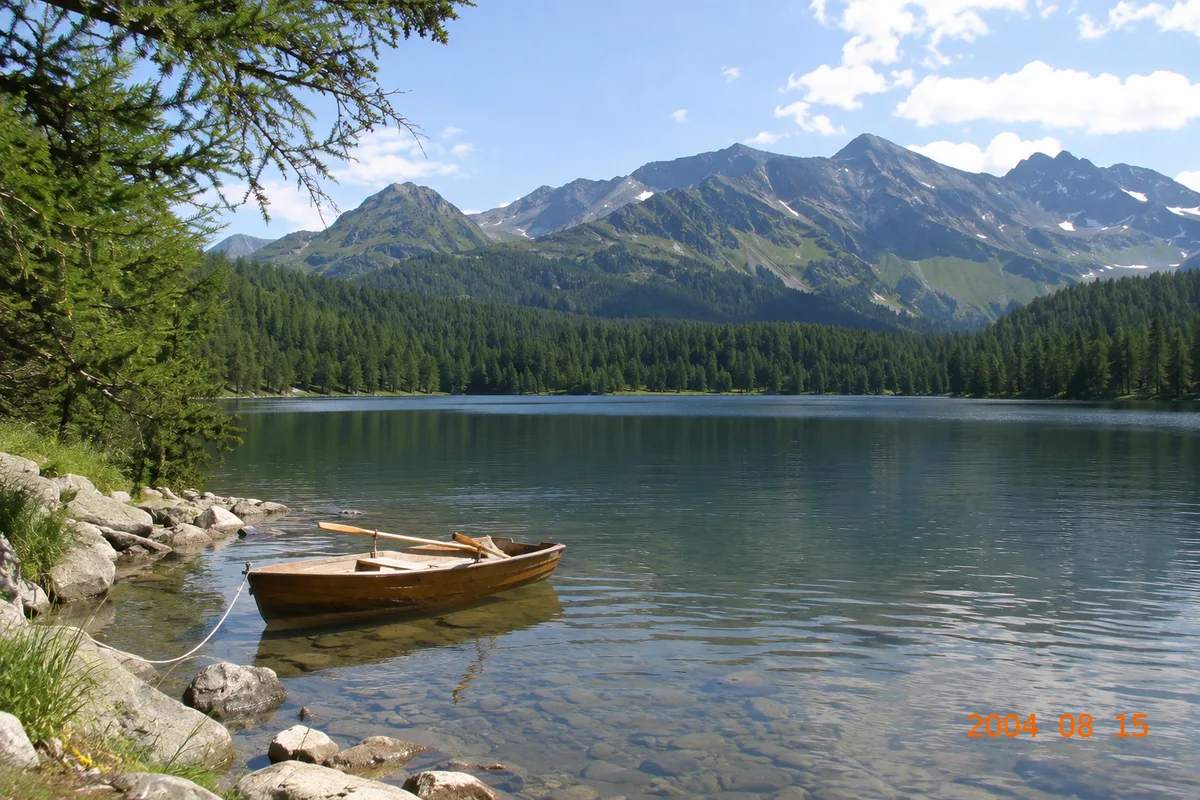
Remove a date stamp
For a date on your own photo.
Remove the date stamp in the lower corner and regenerate the lake surface, keeping the scene as close as possible.
Remove a text sticker
For a sticker on your own mug photo.
Remove the entire text sticker from the mug and recreate the mug surface.
Remove a labeled sticker
For a labeled sticker on your own product photo.
Remove the entire label with text from the pot and recreate the surface behind it.
Remove Text from Image with AI examples
These illustrative AI-generated examples show possible results; details can differ from the source.
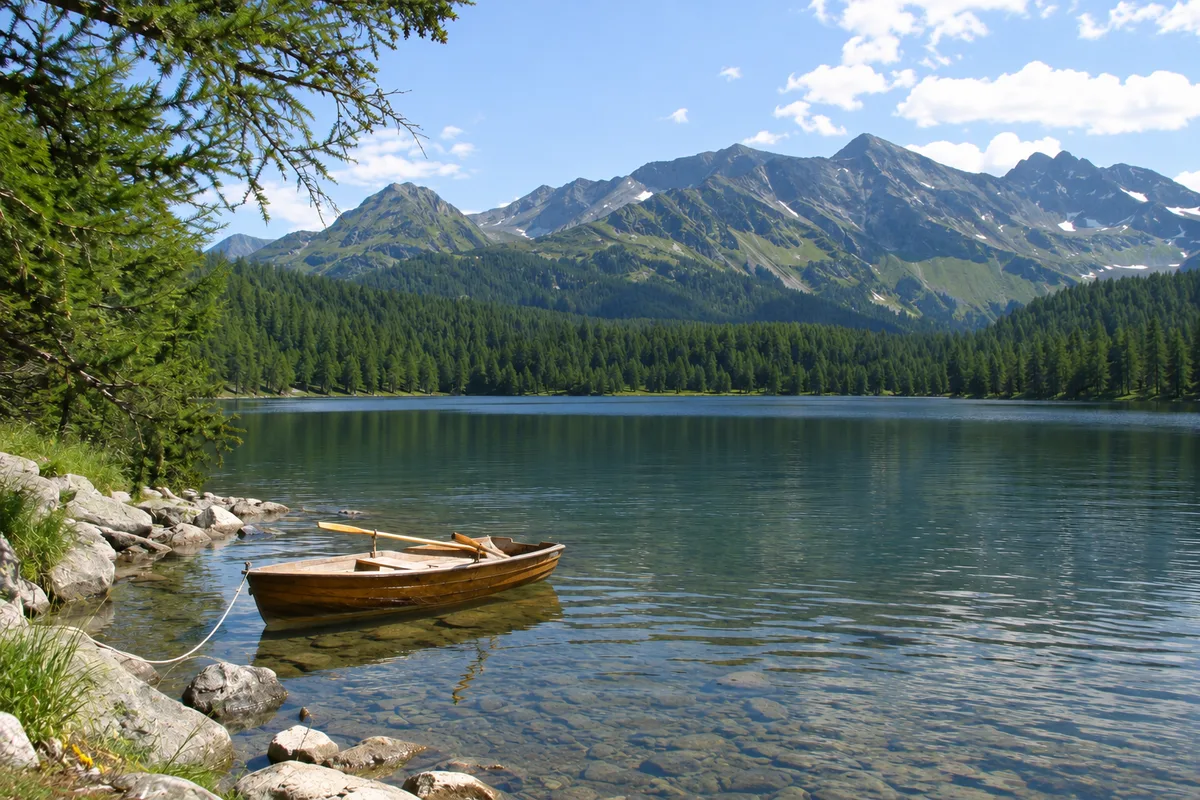
Remove a date stamp
The date disappears while water detail and brightness are regenerated.


Remove a text sticker
The whole sticker carrying text is removed from the mug.
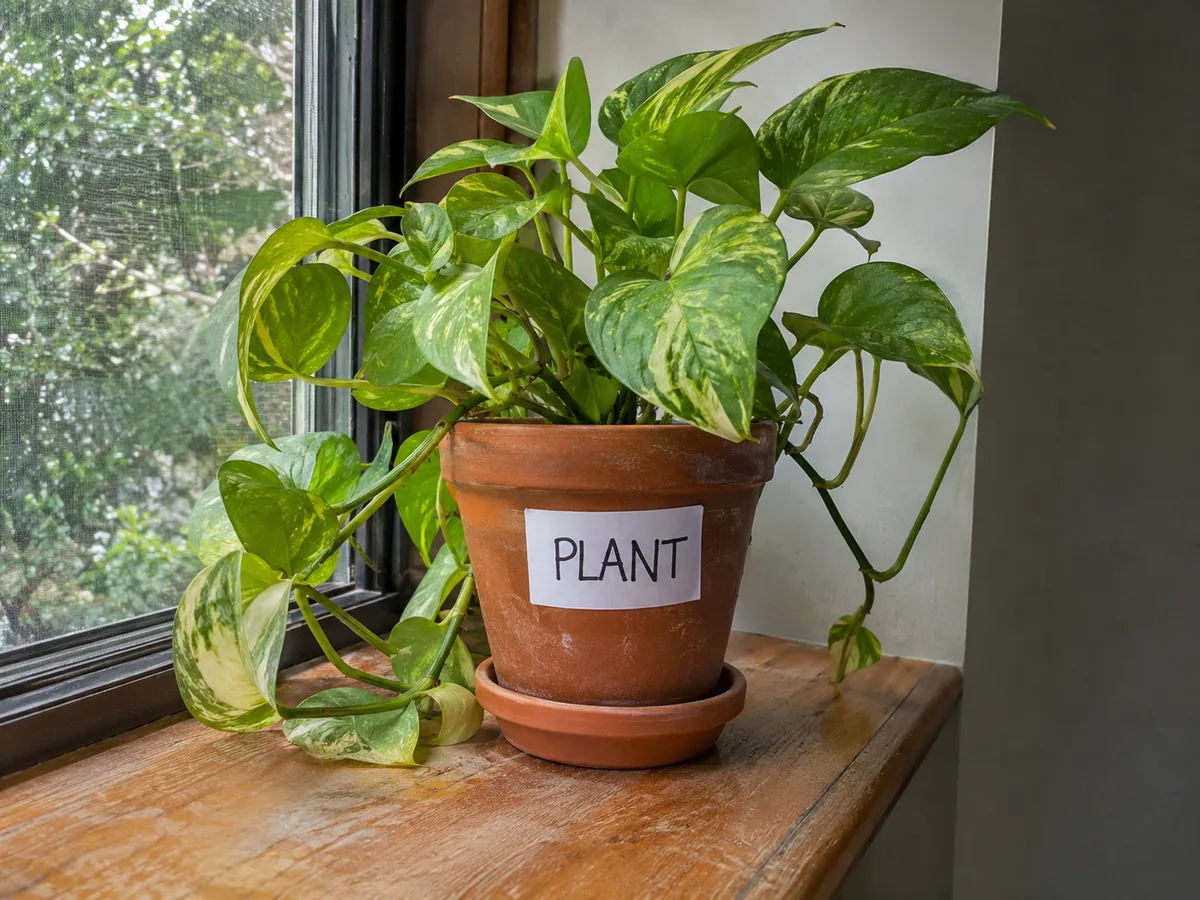
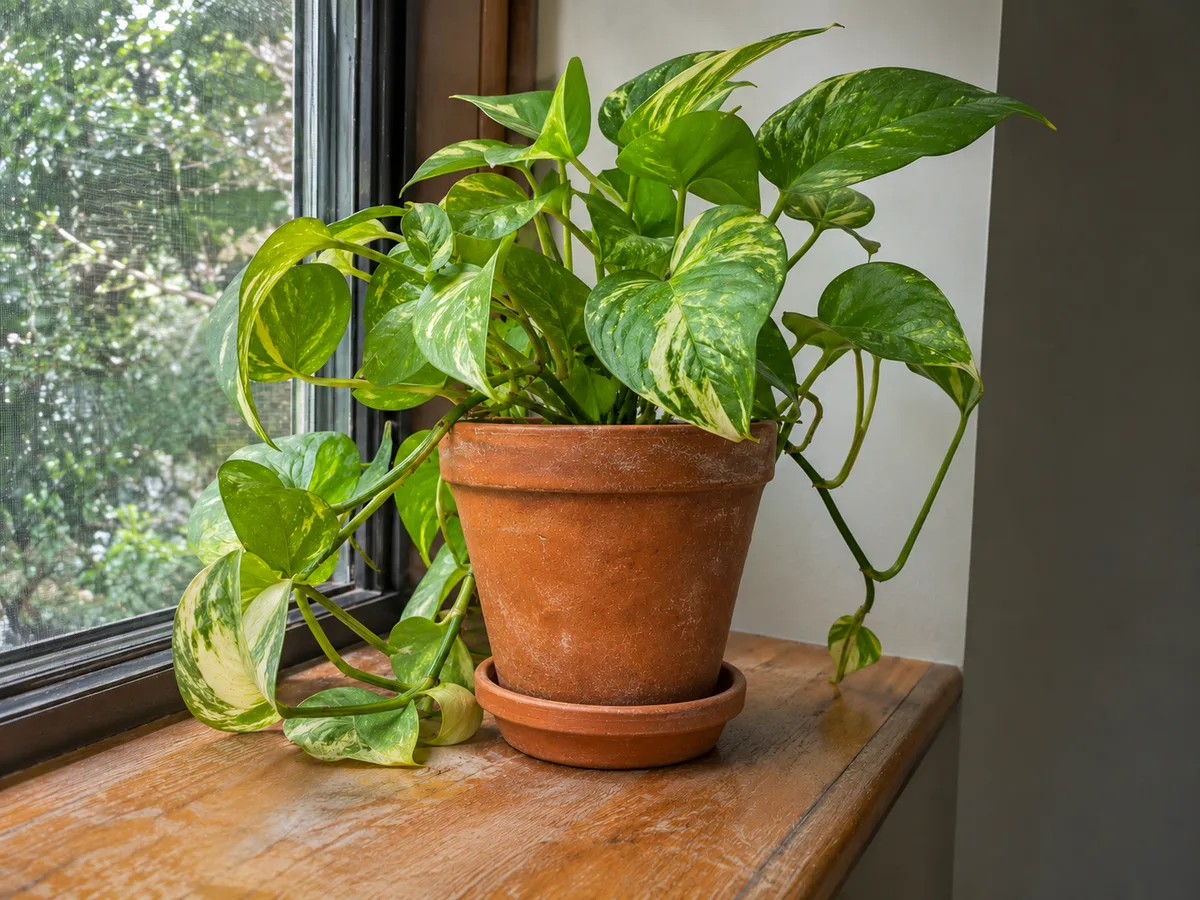
Remove a labeled sticker
The whole label carrying text is removed from the pot.
How to remove text from image
- Upload a photo or screenshot you own or have permission to edit.
- Describe the text and where it appears, or load a sample preset.
- Confirm permission and generate the edited image.
- Compare the background, lettering and nearby details, then download.
What to check in the result
The tool follows a written instruction; it has no brush or mask. Describe the target and its position, such as “remove the date in the lower corner.” The background is regenerated and nearby details or brightness may change.
Use only images you own or have permission to edit, such as your own screenshot, date-stamped photo or photo of a sticker. Keep the original and inspect the entire result before using it.
If you want to change the picture’s style after removing text, use the image to image AI with a new instruction.
Related tools: Remove another object
Remove Text from Image with AI questions
How do I remove text from an image?
Upload an image you may edit, describe the text and its location, then generate and compare the result.
Does text removal use a brush or mask?
No. Describe the text and location in words; the editor generates a new image without a brush or mask.
What happens behind the removed text?
The background is regenerated, so texture, lighting and surrounding details can change.
Can I remove a date from my own photo?
Yes. Describe the date and its location on a photo you have permission to edit; review the reconstructed area.
Can I remove text from someone else’s image?
Only edit images you own or have permission to use. Obtain permission before modifying someone else’s image.
Is online text removal available free?
Limited free use is available; free results have a watermark. Availability and safety rules apply.