



AI Christmas Photo Generator

The AI Christmas photo generator gives an existing photo a warm living room, snowy street or festive product setting. Add Christmas background to a photo, then compare the result with your source.

Change background

Style
Photo: image to image AI comparison of a realistic source photo and cozy christmas living room edit
Cozy Christmas living room: image to image AI comparison of a realistic source photo and cozy christmas living room edit
PhotoCozy Christmas living room
02 · CHRISTMAS SETTINGS

Choose a Christmas photo background for your image

The Christmas photo editor uses your own source for image to image editing. A softly lit adult portrait suits the living room; an outdoor photo with cooler light is a better starting point for the snowy street.

Original: Christmas photo background: Cozy Christmas living room
Result: Christmas photo background: Cozy Christmas living room
OriginalResult

Cozy Christmas living room

Adult portrait. A softly lit adult portrait suits the Christmas tree and warm indoor light. Name the clothing, pose and framing to retain.

Preset prompt: Replace only the background with a cozy Christmas living room, a decorated tree and warm fairy lights. Preserve the subject, clothing, pose and framing. Match light and shadows.

Replaces your source image
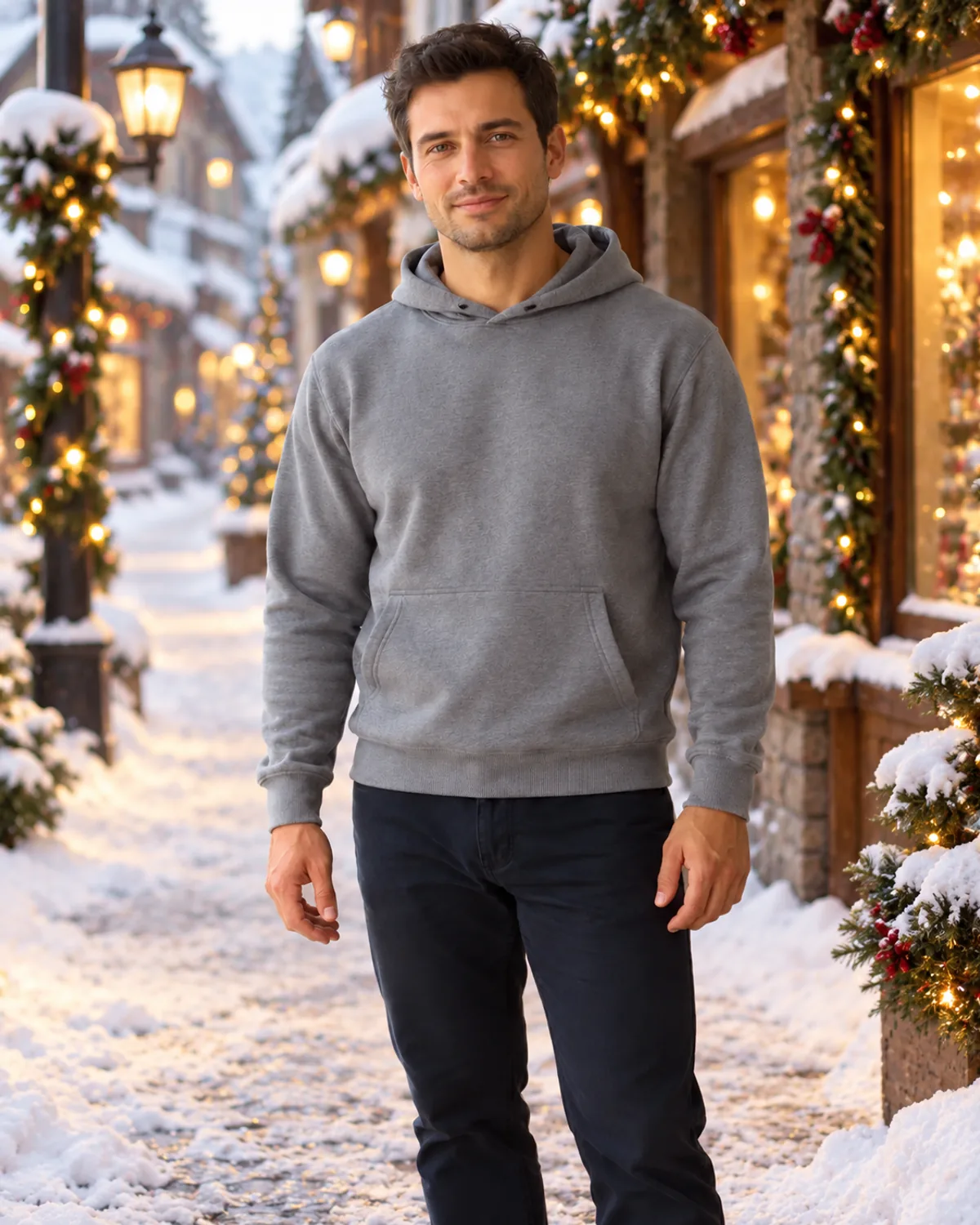
Original: Christmas photo background: Snowy holiday street
Result: Christmas photo background: Snowy holiday street
OriginalResult

Snowy holiday street

Adult portrait. A snowy street with lit windows suits an outdoor portrait with cooler light and room around the subject.

Preset prompt: Replace only the background with a snowy holiday village street, evergreen garlands and warm window lights. Preserve the subject, clothing, pose and framing. Match light and shadows.

Replaces your source image

Original: Christmas photo background: Holiday studio backdrop
Result: Christmas photo background: Holiday studio backdrop
OriginalResult

Holiday studio backdrop

Product photo. A red and gold surface for a product photo. Leave the whole object visible, with space beneath it for a contact shadow.

Preset prompt: Place the unchanged product on a red and gold holiday studio backdrop with subtle ornaments and warm light. Preserve its shape, material, details and framing. Add a soft contact shadow.

Replaces your source image
03 · YOUR SOURCE

Make a Christmas product photo from an existing shot

A clear product photo with the whole object in frame gives a festive listing or social post a useful starting point. Describe a surface and contact shadow so the object sits in the scene. Small lettering and reflections can change; keep the original for uses that require exact product detail.

Match the direction of the scene light to the source. A strongly sunlit face can look out of place in a softly lit room, even with a festive backdrop. For an adult portrait, name the clothing, pose and framing to retain. Generation can still change faces and other details; preservation instructions cannot guarantee identical features.

For settings beyond Christmas, try the AI background changer. To change clothing, use the clothes changer, not a background preset.

Free results are 1K with a watermark. Compare model options and credit costs before you choose a size.

Christmas photo prompts: three steps

  1. Start with a clear photo you have permission to edit. Leave room around hair, shoulders or product edges; decorations cannot recover a cropped subject.
  2. Choose a Christmas setting that suits the source light. Describe where the tree, snow or decorations should sit, leaving the subject unobstructed.
  3. Confirm permission and generate. Compare faces, clothing, edges and lettering with the original before downloading.

For a small card image, a few lights or branches leave more room for the subject than a crowded set. Add precise greetings in a separate layout editor.

Use the image in a separate card layout after review. We do not supply editable text, print bleed or a print-ready Christmas card file. For free output and usage limits, see free editing rules.

04 · FAQ

Christmas photo questions

Which Christmas preset should I use for a product?

Choose Holiday studio backdrop for a product photo. The living room and snowy street examples use an adult portrait. Keep the whole product visible, with room for a surface and contact shadow.

Can I edit my own Christmas photo?

Yes. Upload a photo you have permission to use and choose a Christmas background. A source image is required.

Does choosing a Christmas style start generation?

No. Selecting a style keeps your source and optional details; loading an example replaces the source. Neither action spends credits or changes your plan. View full prompt shows the read-only instruction; Edit as custom makes the combined text editable. Generation starts only when you submit under the existing account rules.

Will the face and product lettering stay exactly the same?

No. Generation can change faces and product lettering. Compare faces, outlines, clothing and small lettering against the original before sharing or publishing.

Can I edit a pet Christmas photo?

There is currently no pet-specific Christmas preset. The examples show adults and products. You can try a custom description for a pet photo, but you will need to review the result yourself.

Can I make a printed Christmas card here?

A finished print-ready card needs a separate layout editor. We do not provide editable text, print bleed or a print-ready card file; use the reviewed image as part of your own layout.

Updated · By the Imgraft team