

Change Color of Image with AI
Change color of image objects by uploading a picture and describing the new shade. Compare the generated image with your original.
No images in this browser yet. Your recent results will appear here.
Image color changer prompts
Load a sample and its instruction, then replace it with your own authorized picture.
Change shirt color
Preview another shirt shade.
Change the shirt to deep blue. Keep the person, fabric texture and background as close to the source as possible.
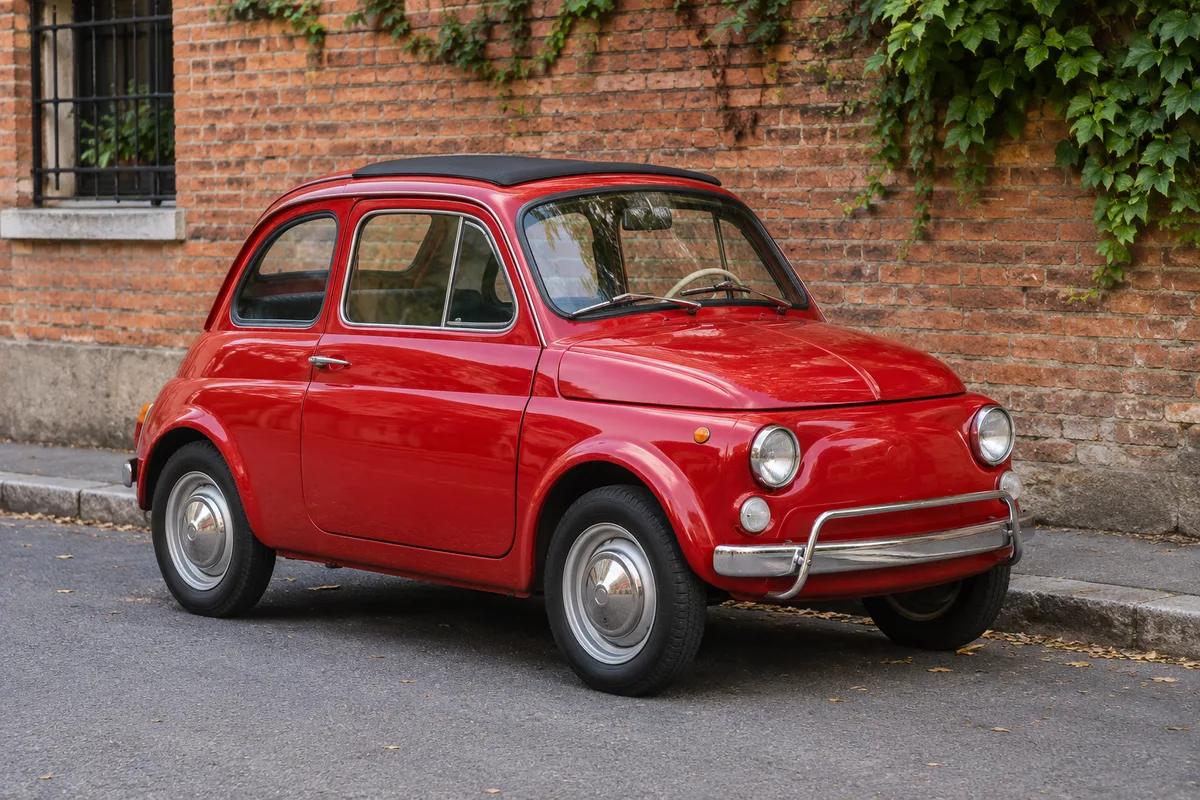
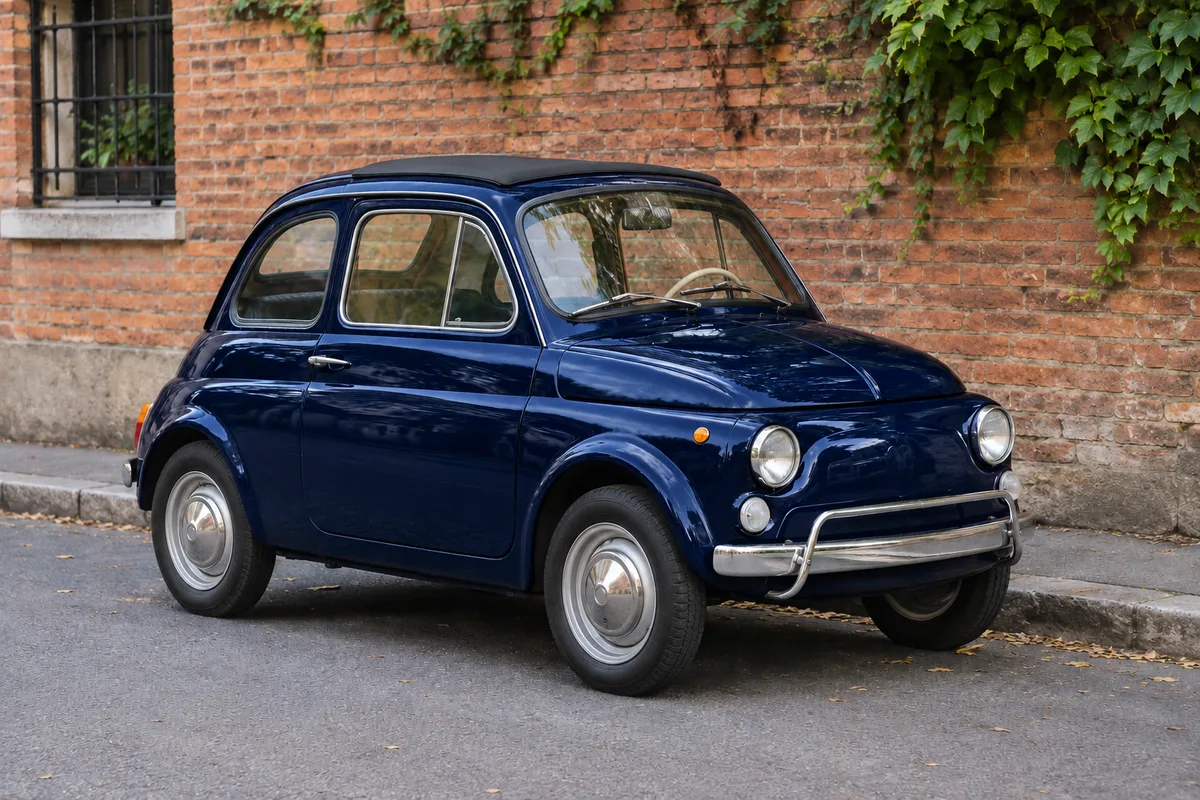
Recolor car
Explore a different car paint color.
Change the car paint to red while preserving its shape, trim and the surrounding scene.
Swap wall color
Preview a room wall in a new shade.
Change the wall to a warm sage green. Keep the furniture, windows and camera angle.
Change the colour of an image
These illustrative AI-generated examples show possible changes; details can differ from the source.
Recolor a car
Inspect reflections and trim as well as the new paint.
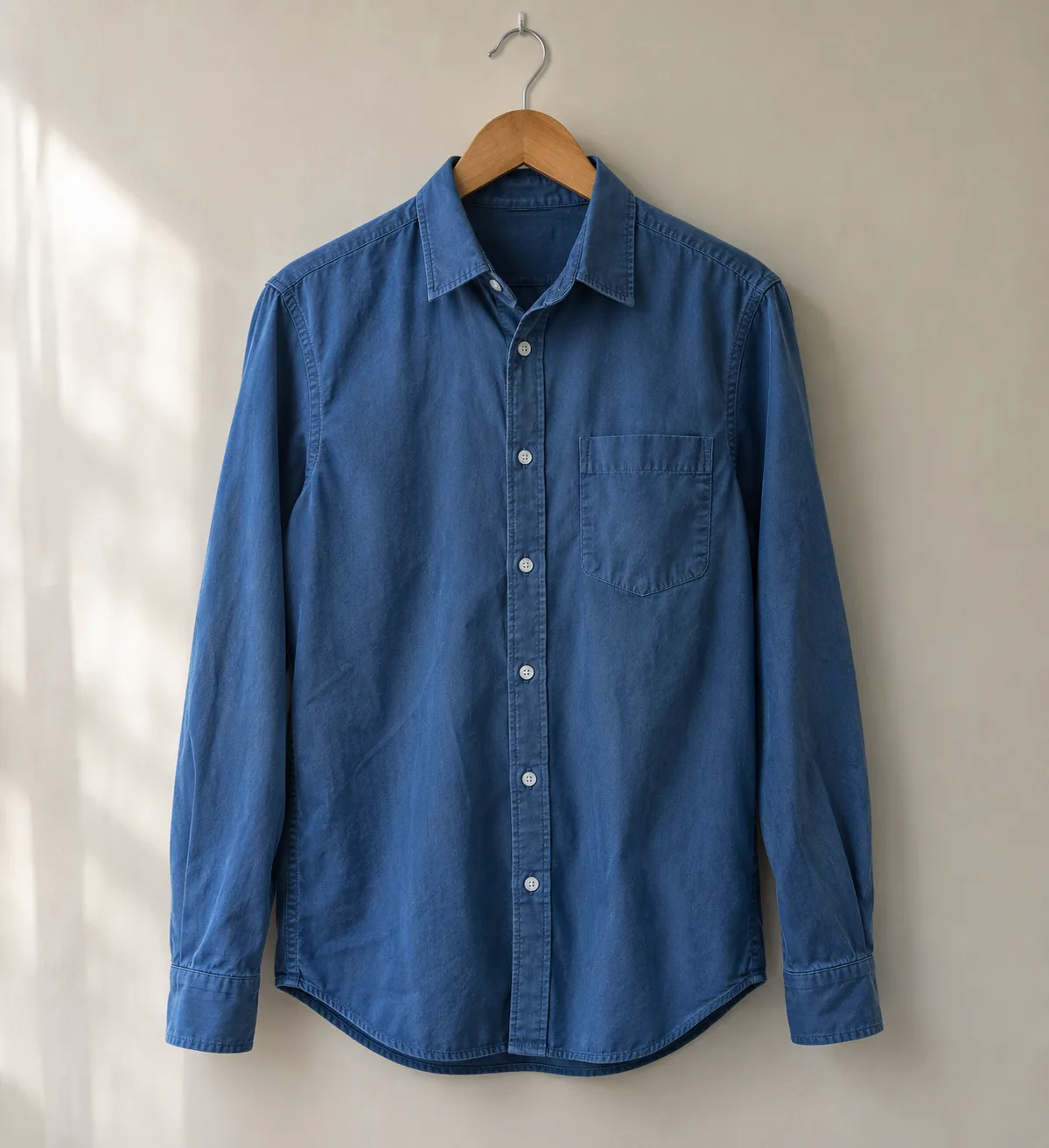
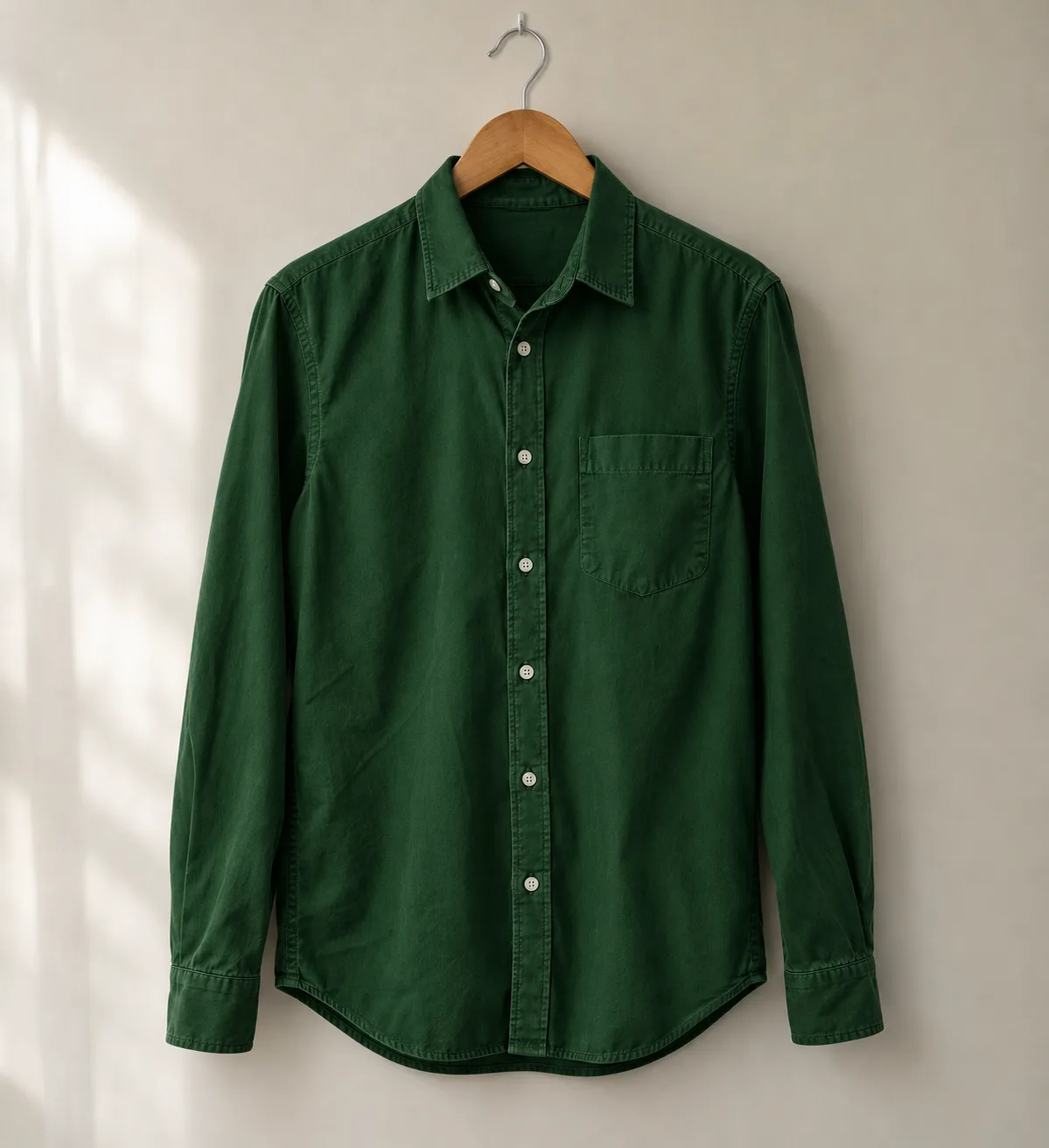
Change a shirt color
Compare fabric texture and surrounding details.
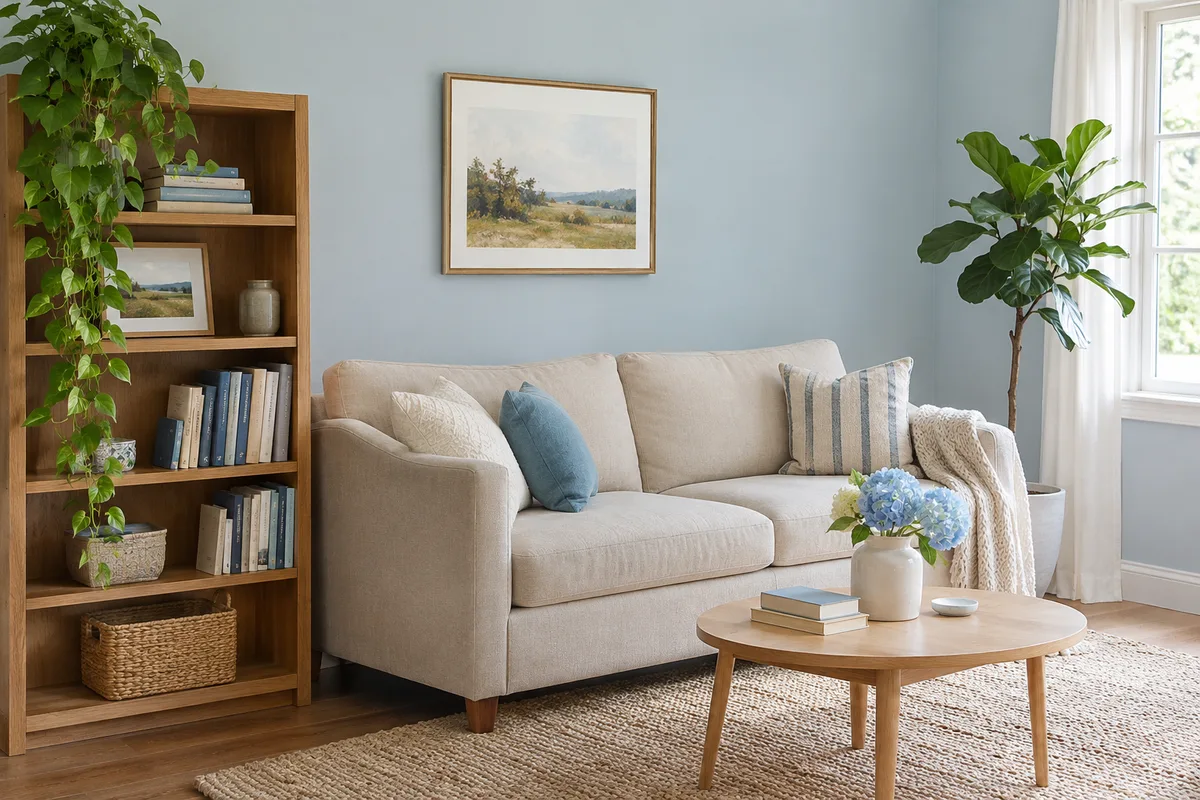
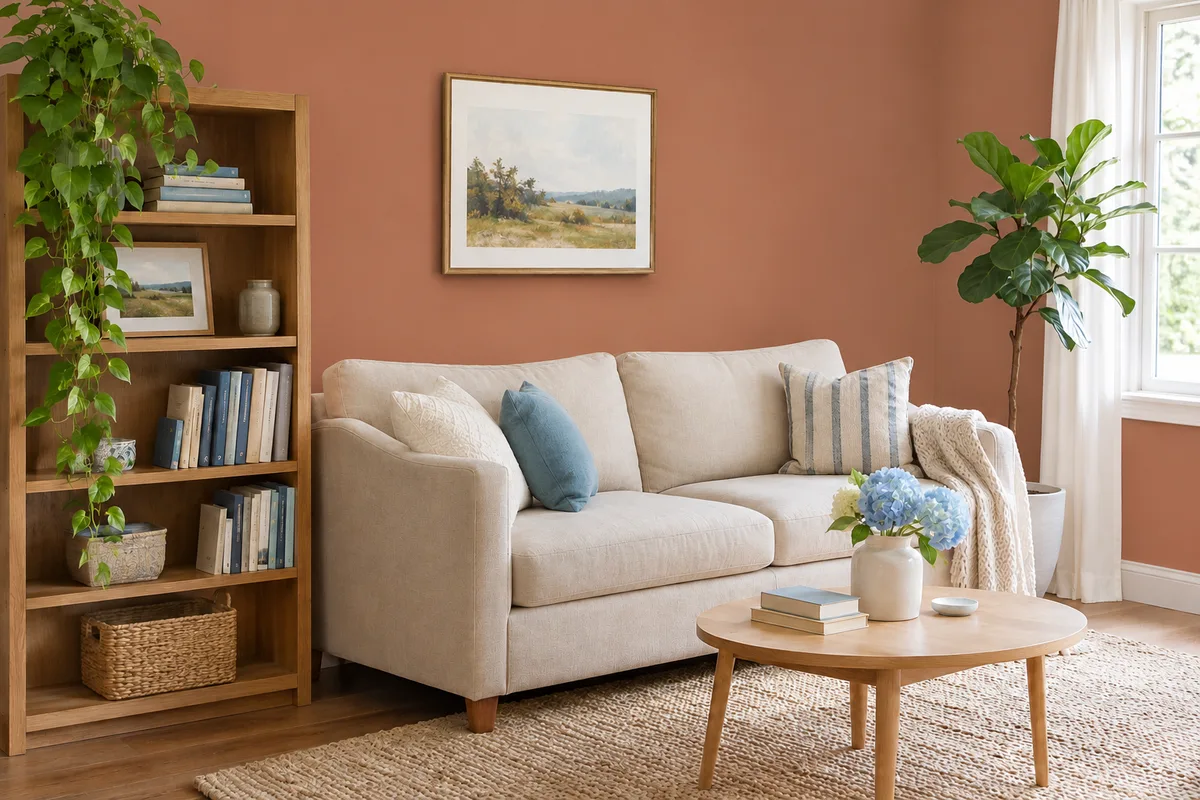
Try a different wall color
Check furniture, lighting and the wall edges against the original.
How to edit color of a picture
- Upload a photo you own or have permission to edit.
- Describe the object and shade, or load a preset and replace the sample.
- Confirm permission and generate an image.
- Compare colors, textures, text and edges with the original, then download.
What to check after recoloring
A prompt guides a newly generated picture rather than selecting an exact color range. The model may change lighting, labels, texture or objects around the target. Use a conventional editor when exact brand colors or unchanged pixels matter.
Keep your original file and inspect the result before sharing or using it for a product listing. Describe both the target and what you want to keep, but treat those instructions as requests rather than guarantees.
For a broader restyle of the picture, try our image to image AI.
For a new setting behind a subject, try the AI background changer. For other changes, use the AI image editor.
Image color changer questions
How do I change the color of an image?
Upload an image you may edit, describe the object and the new color, then generate and compare the result with your source.
Can I change a shirt or car color?
Yes. Name the shirt or car and the desired shade. The generated result may also change textures, reflections and other details.
Does the color changer preserve every pixel?
No. A prompt guides generation, so edges, labels and lighting can change. Use a conventional editor when precise color selection or unchanged pixels are required.
Can I edit color of a picture free?
Limited free use is available; free 1K results have a watermark. Availability and safety rules apply.
Can I choose a precise brand color?
You can describe a shade, but generation does not guarantee a precise color value. Use a conventional editor for exact brand colors.
Can an image color changer alter reflections?
Yes. Paint, fabric and reflections may all be regenerated. Compare the entire result with the original.