

AI Image Upscaler
Use this AI image upscaler to enhance image detail and upscale to 2K or 4K, then check the result against your source. Paid users only · 2K: 2 credits · 4K: 3 credits.
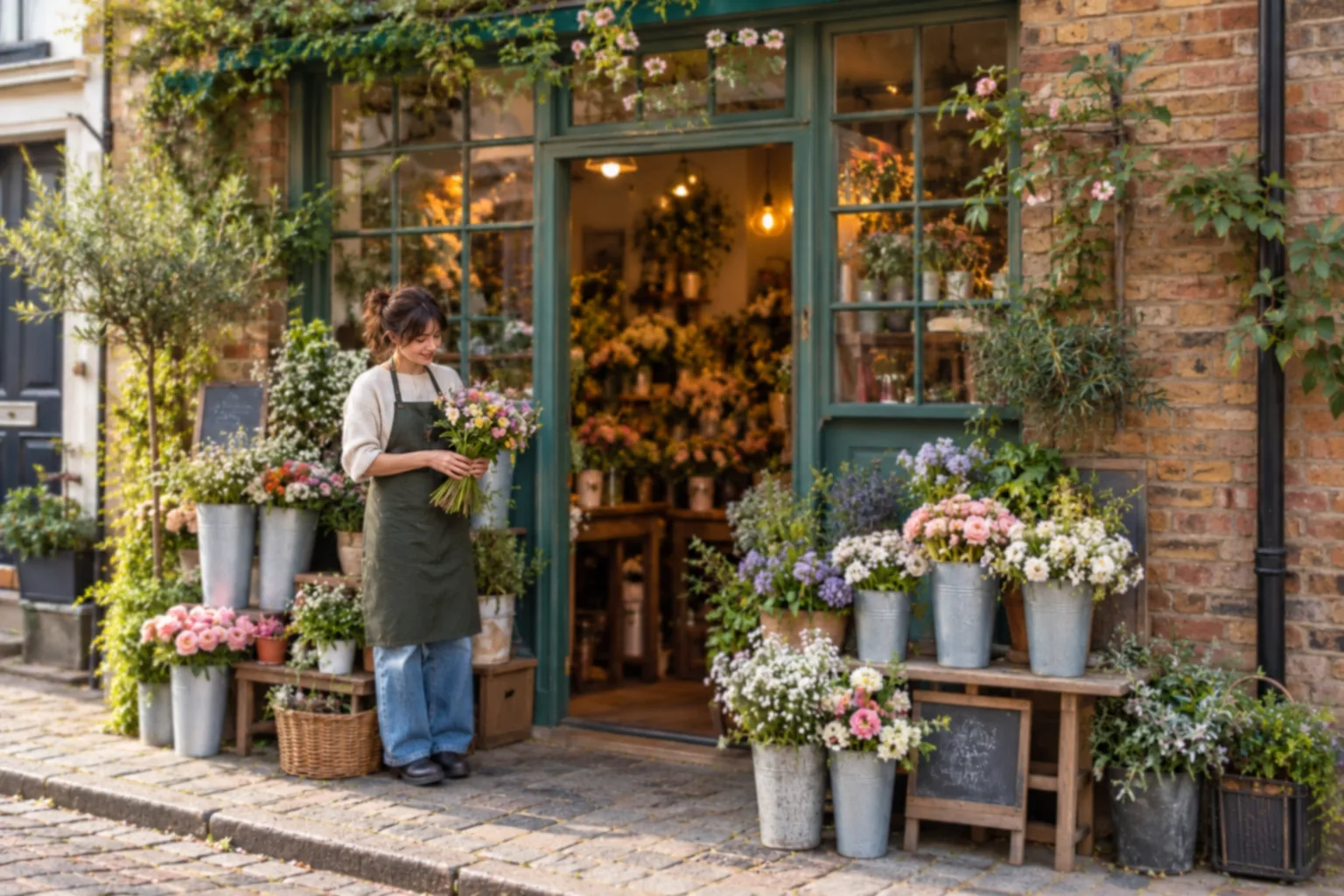
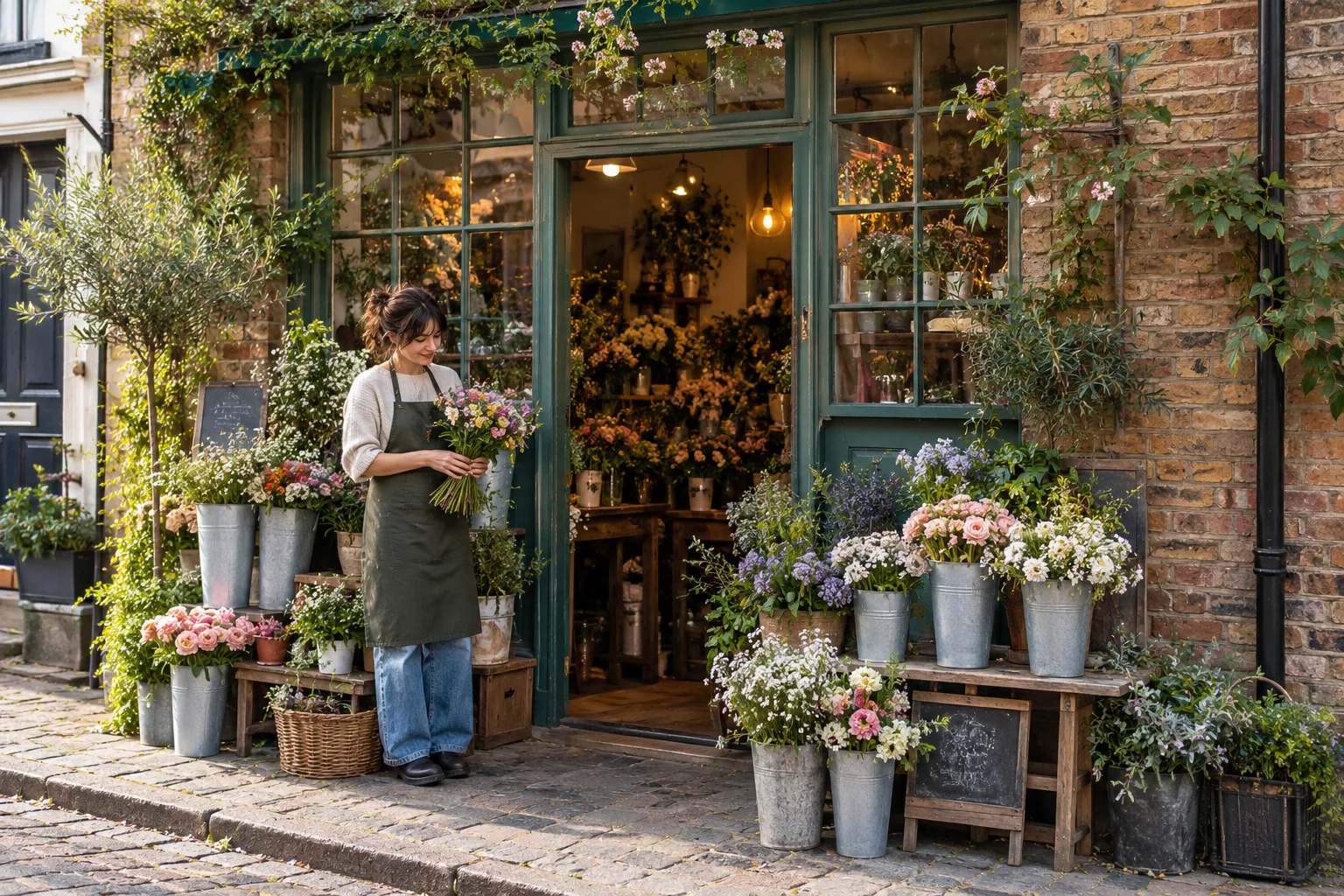
No images in this browser yet. Your recent results will appear here.
AI enhance image example: compare the source and result
This illustrative before-and-after shows how to inspect a result against its source.
Illustrative example generated for this page. Your result depends on your source image.
How to upscale an image
Upload an authorized image, choose a size and check the credit quote before generating. Compare the result with the source before downloading.
- Upload one JPG, PNG or WebP image you may use.
- Choose 2K or 4K and check your purchased-credit balance and displayed cost.
- Confirm permission and run the enhancement.
- Use the before-and-after control to inspect faces, colors, objects and lettering; download only a result you approve.
Third-party models process the image for enhancement and safety review. Anonymous images are deleted after 24 hours; signed-in images after 7 days. Read the privacy policy and keep your original file.
2K or 4K: which should you choose?
Choose the output tier for your intended use and budget. The AI image upscaler requires purchased credits; free and gifted credits cannot be used.
| Tier | Cost | Use and review |
|---|---|---|
| 2K | 2 credits | Preview a larger result; inspect details against the source. |
| 4K | 3 credits | Choose a larger output when needed; inspect details against the source. |
In one test set, 3:4 portrait output was 1632×2048 and 4:3 landscape output was 2048×1536 at 2K. These are observed results from that set, not fixed pixel specifications. See current plan and credit details.
Check the result before you use it
AI enhancement can change visible details. Keep the original and compare every feature that matters to your intended use.
Face
Expression, features and wrinkles.
Product
Outline, edges and small components.
Color
Product colors and overall tone, especially old photos.
Labels and logos
Every letter and mark against the original.
Sharpness does not mean the text is correct. Do not use an enhanced document as proof of its original wording; for a published design, reapply an original vector logo in a separate editor if needed.
What AI upscaling can and cannot recover
An AI image enhancer can make an image larger and clearer-looking, but new-looking details may be estimates. The result cannot establish information missing from the source.
Scratches, creases or faded color on an old print are a different task: start with AI photo restoration, then upscale the restored copy if you need a larger file.
| Task | What changes | Review point |
|---|---|---|
| Ordinary enlargement | Increases pixel dimensions. | Does not establish missing original detail. |
| AI enhance and upscale | May add or change visible-looking detail. | Compare faces, colors, shapes and text. |
| Image to image editing | Uses a source plus an edit instruction to generate a new image. | Check intended changes and unintended ones. |
What to expect from an upscale
Results vary by image. Compare the enhanced image with your source before you use it.
- Product and scene details usually come through well.
- Faces can change slightly, including expression and wrinkles.
- Old photos can shift in color tone.
- Lettering can change; check it against the original.
AI image upscaler questions
What does the AI Image Upscaler do?
Imgraft enhances and upscales one image to a 2K or 4K output. Compare the result with the source because generated details can change.
Is the AI Image Upscaler free?
No. It uses purchased credits only; free or gifted credits cannot pay for an upscale. A 2K output costs 2 credits and 4K costs 3 credits.
How many credits does upscaling cost?
Upscaling uses 2 credits for 2K and 3 credits for 4K. Check your purchased balance and the tool quote before starting.
Should I upscale image to 4K or stay at 2K?
Choose by intended output size and purchased-credit budget: 2K uses 2 credits; 4K uses 3. More pixels do not prove every small detail is correct.
How long does an upscale take?
In a small test of three Imgraft images, each 512px source took about 17–20 seconds to reach 2K. This small sample does not guarantee processing speed.
Can AI upscaling change a person's face?
Yes. Expression and wrinkles varied in our small test. Compare facial features with the original before sharing or printing.
Can the colors change?
Yes. One old-photo result looked grayer in our small test. Compare important colors and tones against the source.
Can it recover the original details from a blurry image?
AI enhancement may produce a clearer-looking image, but new-looking detail is an estimate, not proof of the original scene. Keep the source for comparison.
Will labels or small text stay accurate?
Not always. Sharpness does not mean the text is correct. Check every label and letter against the original; do not use the result as evidence of an important document's wording.
Can I use the upscaler on product photos?
Yes, if you have permission to use the source. Product and scene details looked good in our small test, but inspect shape, colors, logos and label text against the source before publishing.