

AI Photo Restoration: Restore Old Photos Online
Restore old pictures from a scan: upload an image you may use, start with Restore old photo, then compare the new result with the original. AI can reconstruct details rather than recover them exactly.Limited free use · 1K with watermark · No sign up
No images in this browser yet. Your recent results will appear here.
Photo restoration examples
Illustrative AI-generated examples made for this page, including fictional people. Slide each comparison to inspect the source and restored version. Repairs and colors are interpretations.
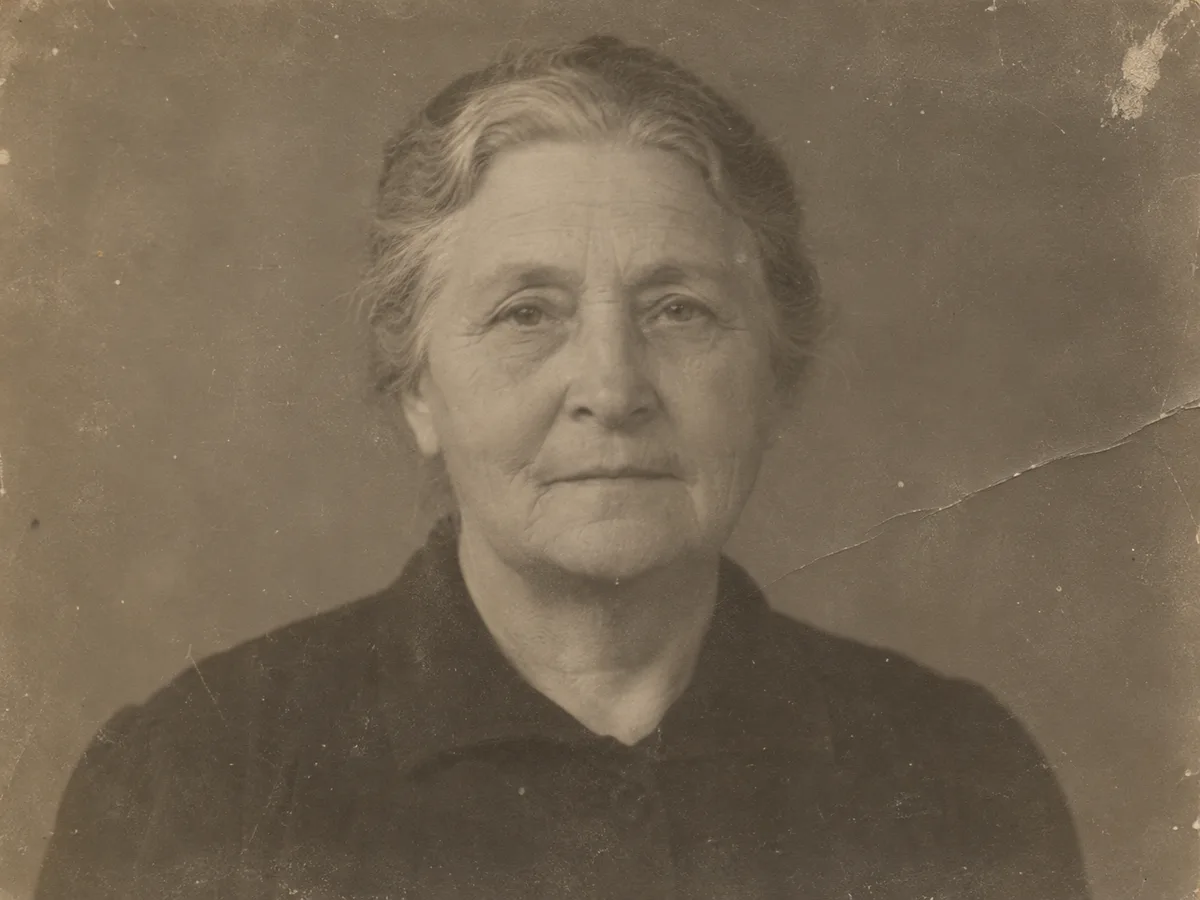
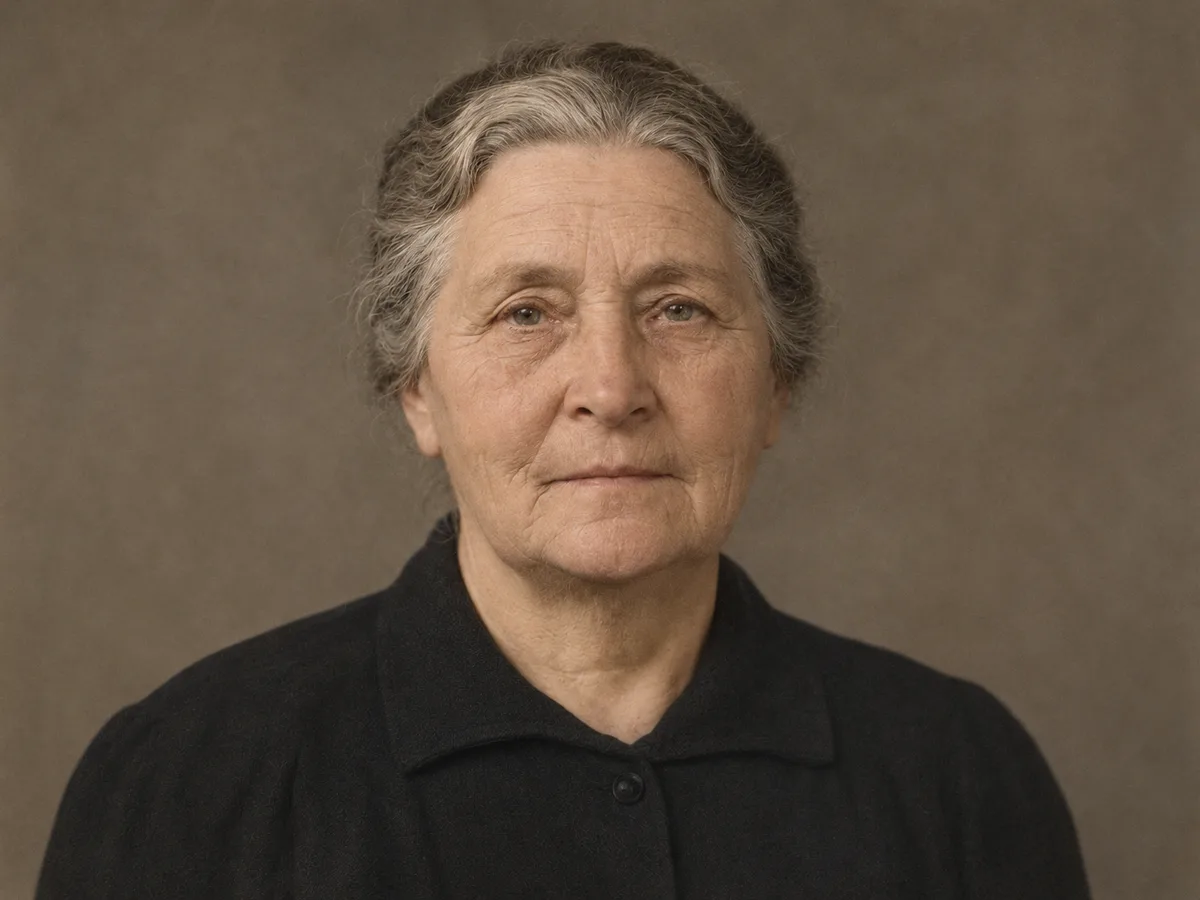
A scratched studio portrait
Fine scratches and fading are reduced. Check the eyes, mouth and hair against the scan; the person is fictional.
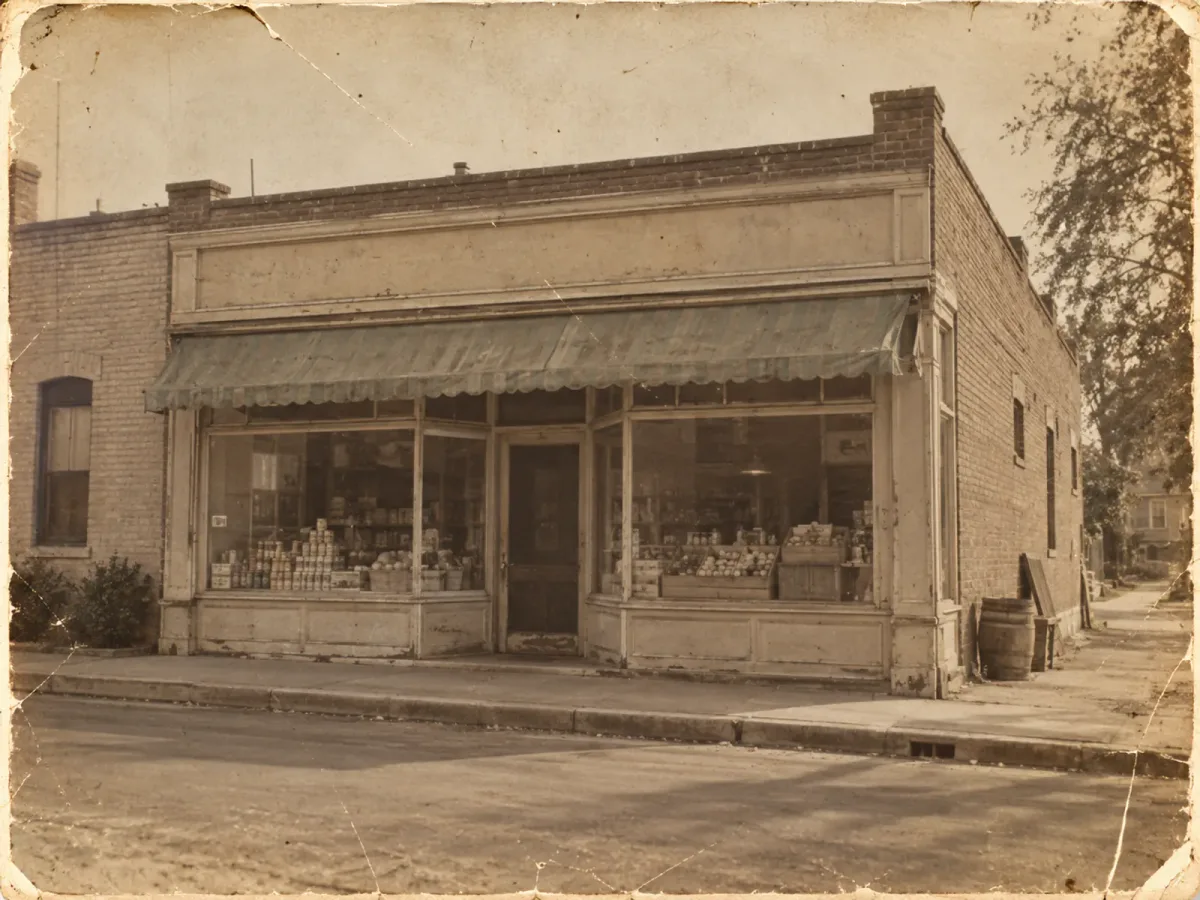
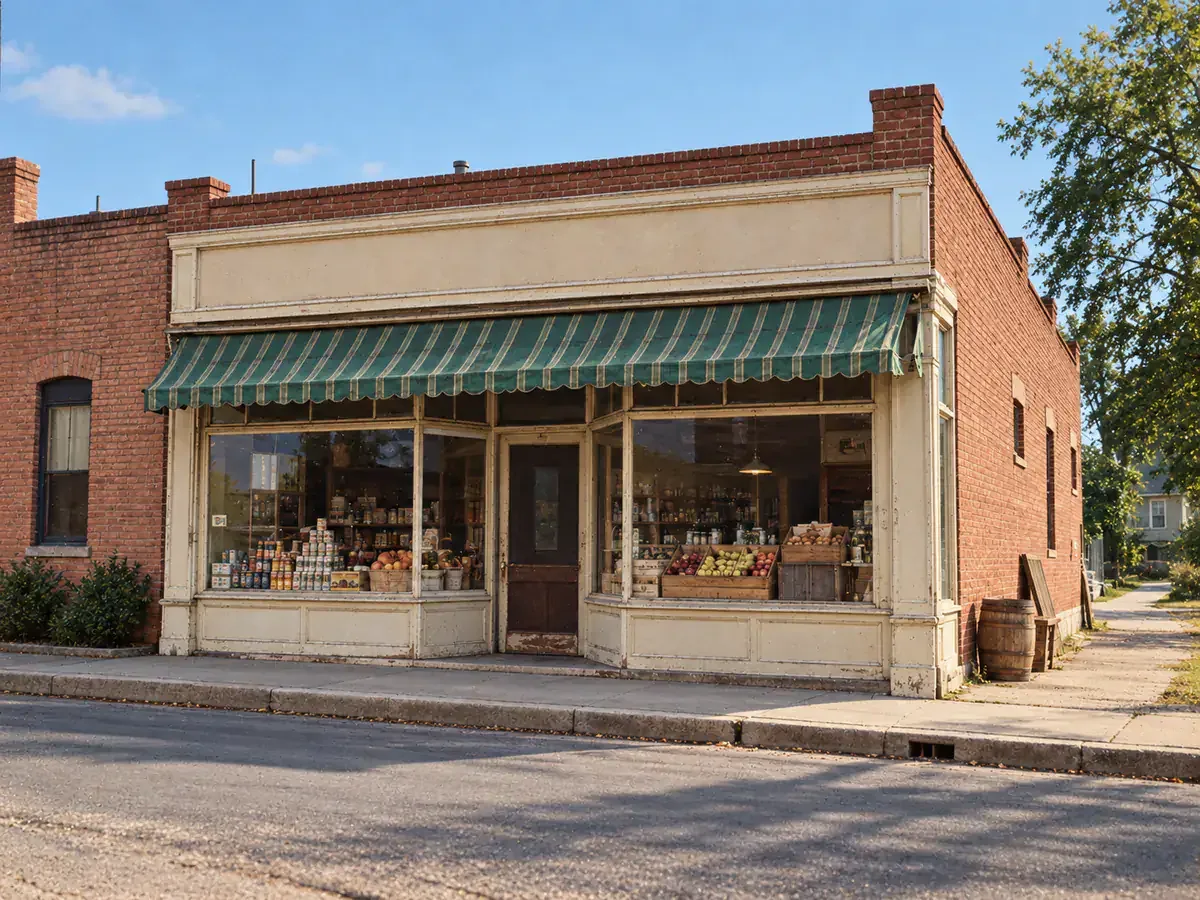
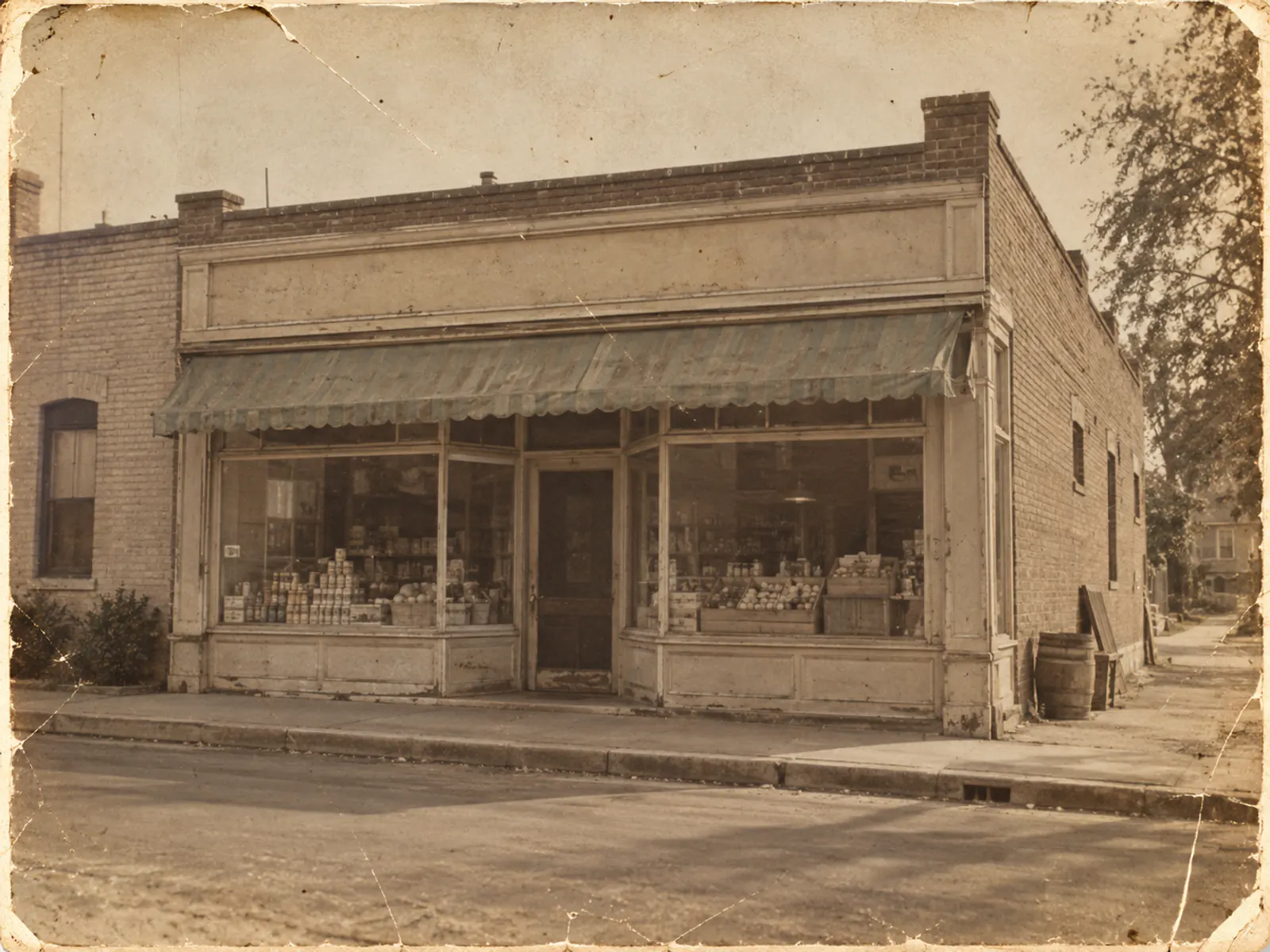
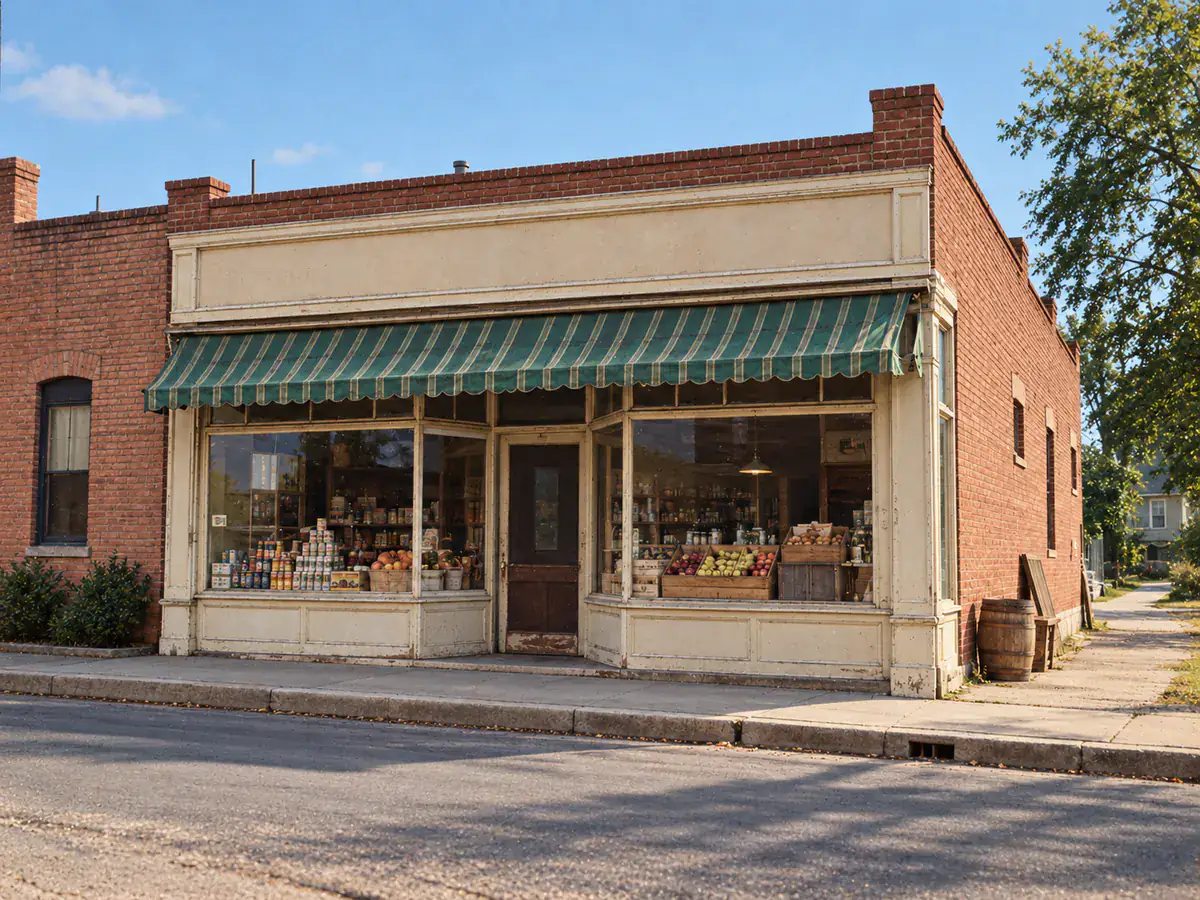
A faded storefront
The scene gains contrast and color. Inspect window frames and signs before using a restored building image as a record.
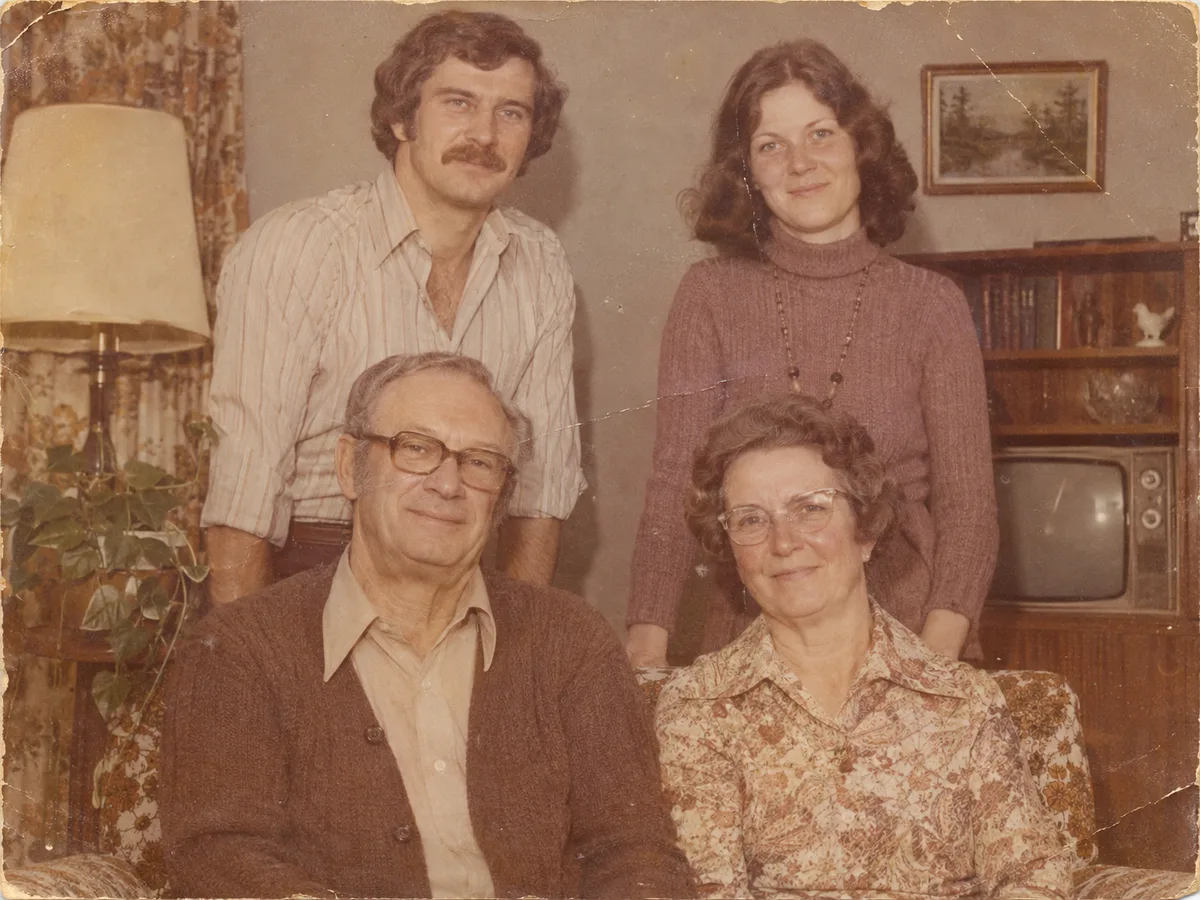
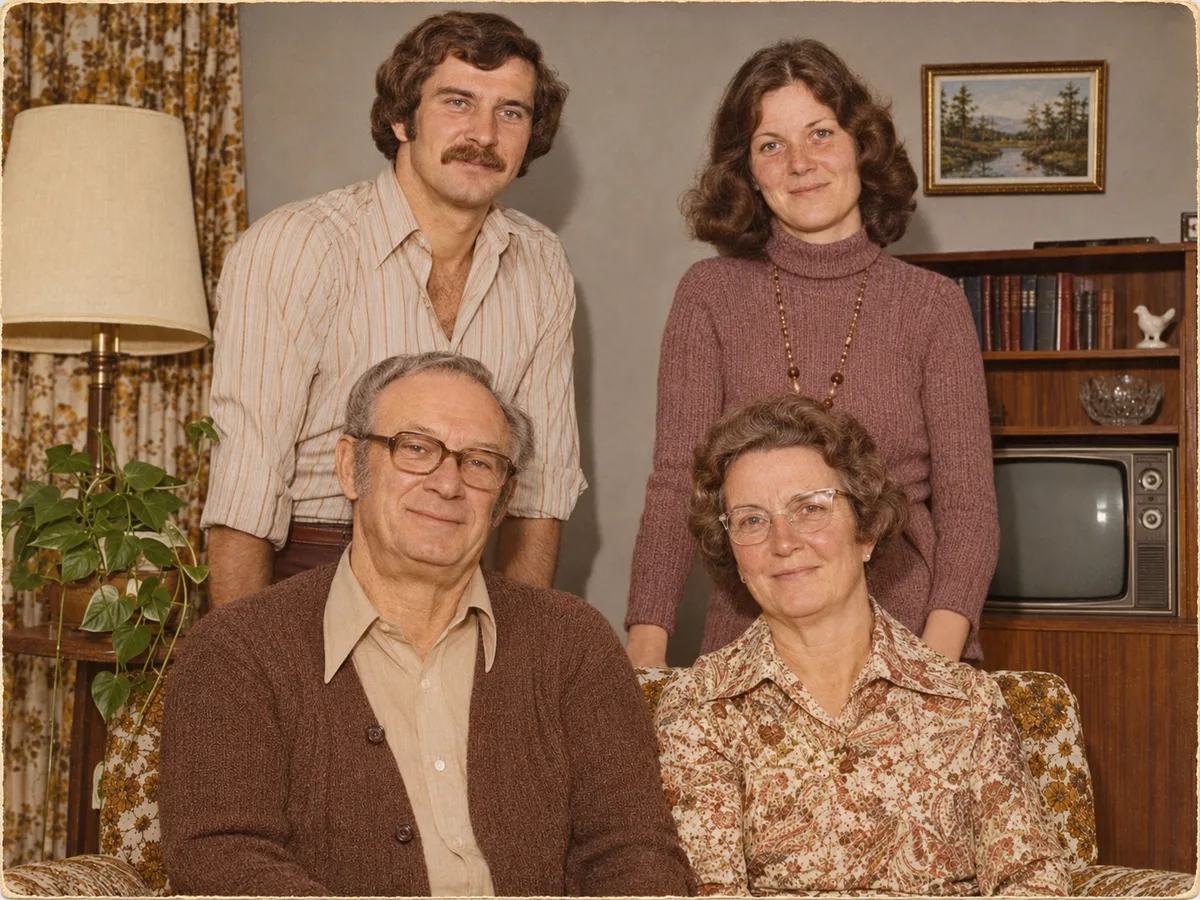
A creased family photograph
A four-adult fictional family portrait shows repaired creases and color. Compare every face and garment with the original.
How to restore old photos
Start with the best scan you have. Keep that file untouched while you try a generated version.
- Scan the print as clearly as you can and keep the original file. Upload a JPG, PNG or WebP you have the right to use.
- Leave Restore old photo selected. Its instruction removes scratches, dust and fading, then adds natural color while keeping the scene.
- Generate a result with the existing image workbench. Limited free use produces a 1K image with a watermark.
- Compare faces, lettering, edges and colors with the scan. Download the result and preserve both files.
What can you restore—and what needs a specialist?
Try photo restoration for faded family prints, scratched portraits and street or building photographs. A clear, evenly scanned source makes it easier to spot what the result changed. A severely torn or blurred area gives the model less evidence.
AI regenerates image details. Faces, handwriting and signs may change even when the prompt asks to preserve them. This is a visual edit, not a faithful archival repair or a substitute for professional conservation.
Only upload photos you own or have permission to use. Save the untouched scan beside every result, and label an AI-restored copy when sharing it as family or historical material.
Need a larger version after restoration? Try the AI image upscaler and inspect it against the scan. For other image changes, see how img2img works.
Photo restoration questions
Can I restore old photos online free?
Yes, with limited free use. Free Standard results are 1K with a watermark. The free allowance does not refill daily and may be unavailable at busy times; safety rules still apply.
Can AI colorize a black-and-white photo?
Yes. The Restore old photo preset asks for natural color while removing scratches, dust and fading. Colors are generated guesses, so keep the original scan and do not treat the result as a historical color record.
Will restoration change a face or text?
It can. AI reconstructs missing detail and may change facial features, signs or handwriting. Compare the result with the original and use a professional conservator when historical accuracy matters.
How large a photo can I upload?
Upload one JPG, PNG or WebP file up to 10 MB. Images are resized to 2048 pixels on the longest edge before generation. Free output is 1K with a watermark; paid output supports up to 4K without it.
Are my old photos saved by Imgraft?
Uploads and results are stored temporarily. Anonymous images are deleted after 24 hours; signed-in images after 7 days. Imgraft does not use uploads to train models, and third-party AI models process the request. Download the result before it expires and keep your original scan.