
What is img2img (image2image)?
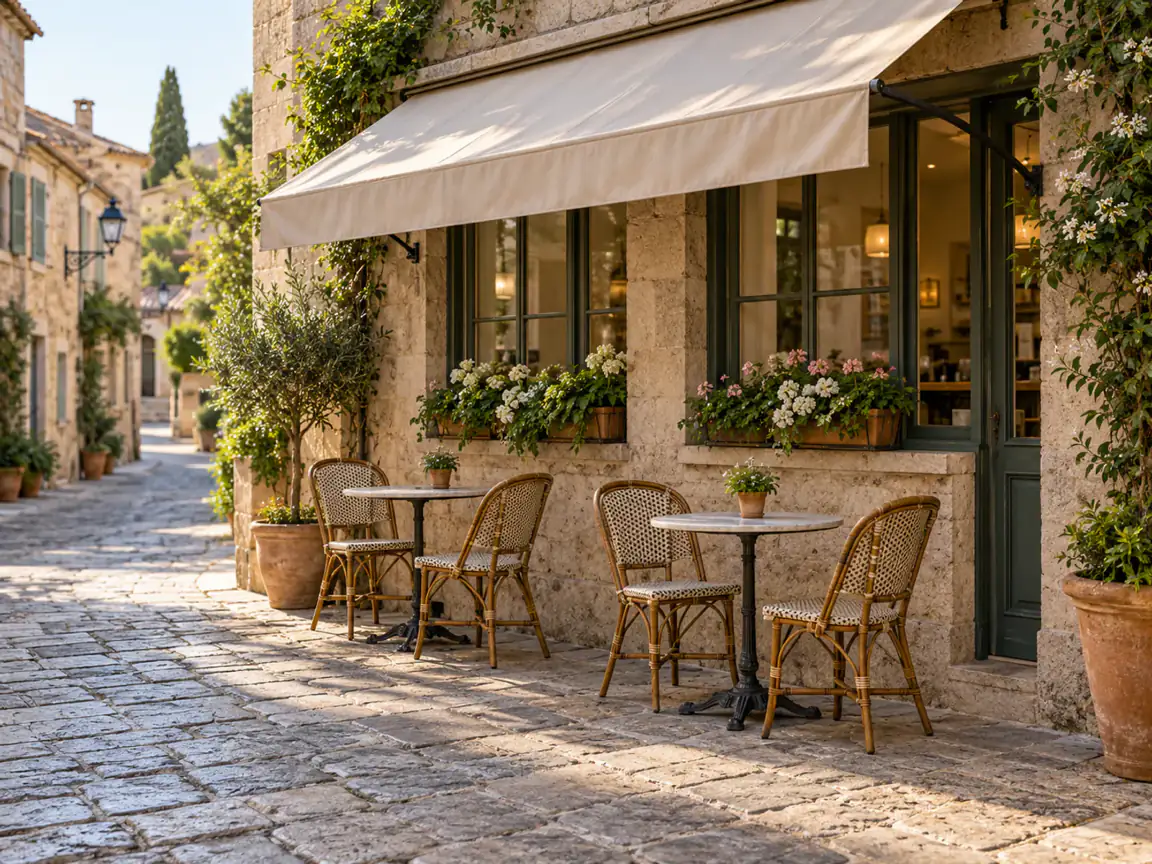
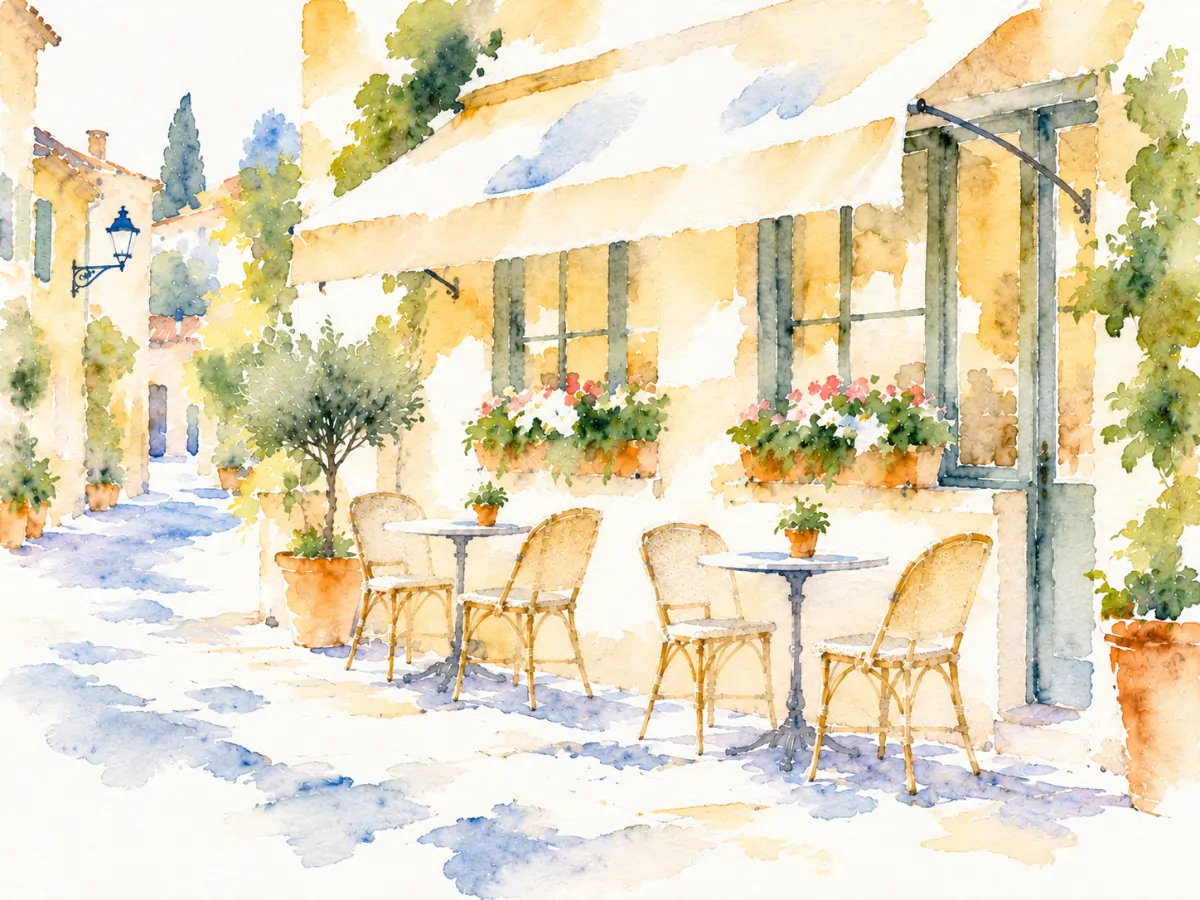
Img2img, also written image2image, generates a new image from a reference picture and an instruction. You might upload a greenhouse photograph and ask for a watercolor version, or upload a room photo and ask for different materials. The source gives the model visual information you would otherwise have to describe.
Imgraft at imgraft.com is an independent AI photo editor; About Imgraft identifies the product and its support contact.
Try the image to image AI workbench with a source you own; it works as a free img to img editor without sign up. The output is generated again rather than edited pixel by pixel. Objects can move, text may change and details can be invented. Keep the original and inspect the result when accuracy matters.
Img2img vs text to image
Text to image invents a scene from your description. Img2img starts with a scene you supply. If the camera angle, building shape or product arrangement already exists, a reference image can make the request easier to express. It does not guarantee an exact copy of those elements.
Try free img2img editing when you have a source. Use a text-only generator for a new composition. Use image to image AI when you want a different treatment of an existing picture. Use a conventional editor when you need to change one pixel region with predictable, exact results.
| Task | Use | Why |
|---|---|---|
| Change an existing picture | Img2img | Your picture supplies the layout |
| Start from nothing | Text to image | Words describe the whole scene |
| Fix one exact region | Conventional editor | Predictable, pixel-level control |
Img2img denoising strength: what this tool actually controls
Some diffusion tools expose a numeric denoising parameter. Imgraft uses Subtle, Balanced and Bold prompt templates instead. Subtle asks the model to preserve structure closely. Balanced keeps the main layout recognizable. Bold asks for a freer interpretation. These are written instructions, not a hidden denoise percentage.
The underlying idea is described in SDEdit, a research method that adds noise to an input image and then denoises it, so the output stays related to the source.
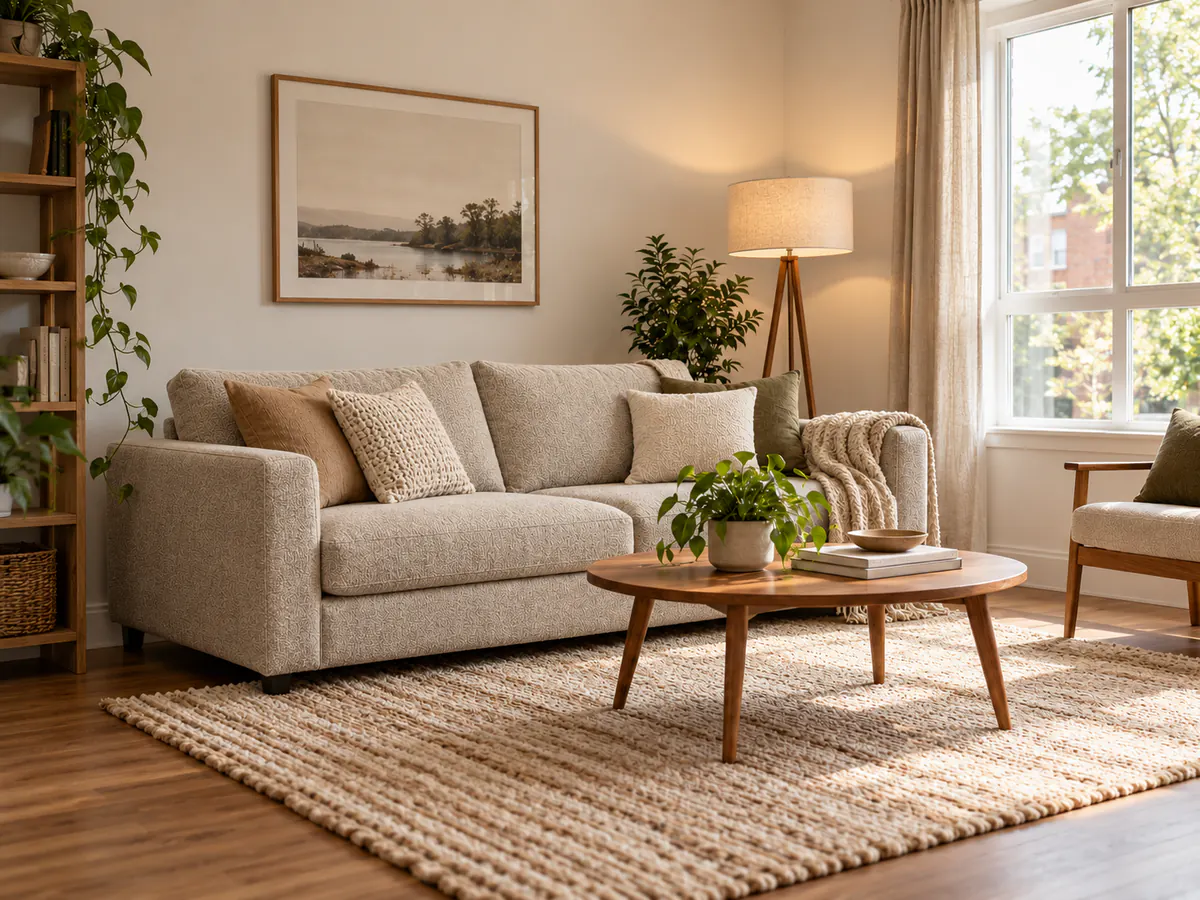
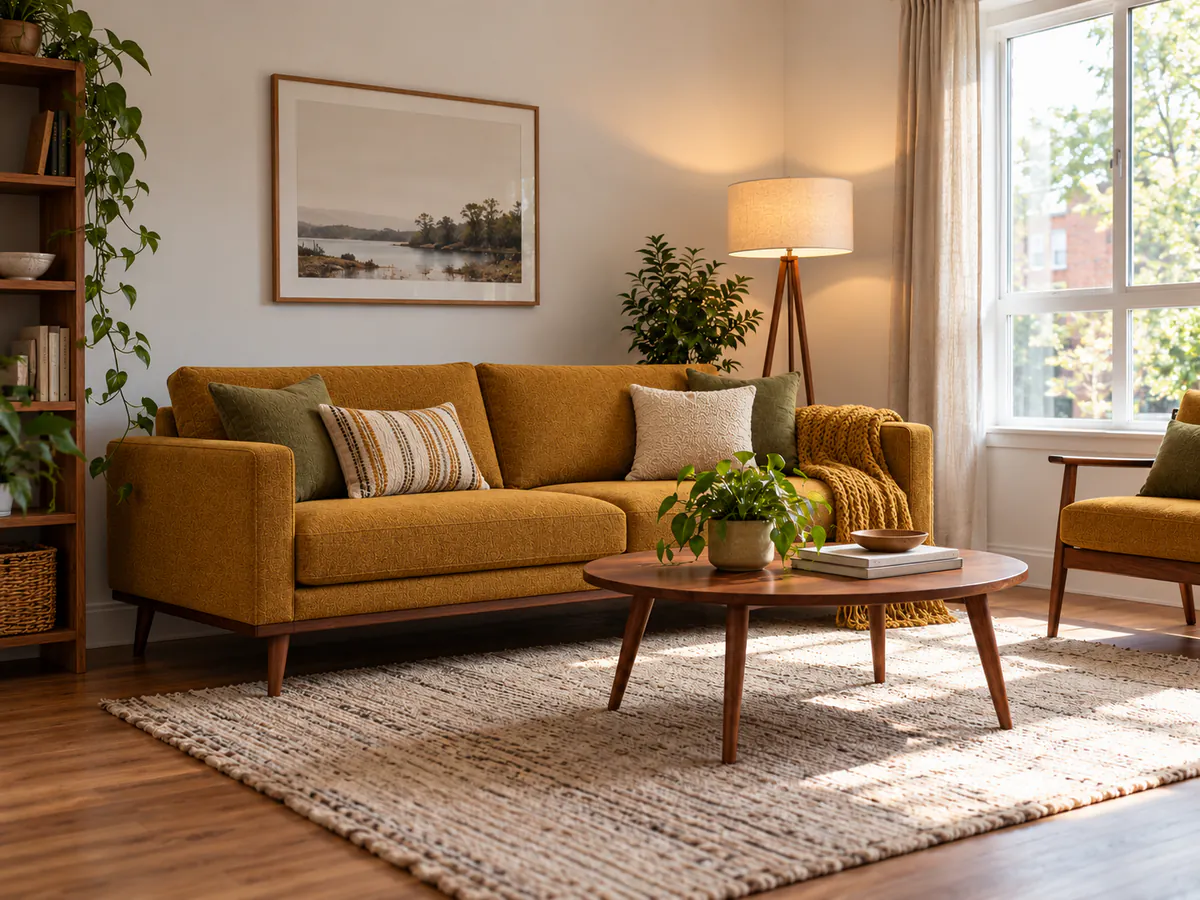
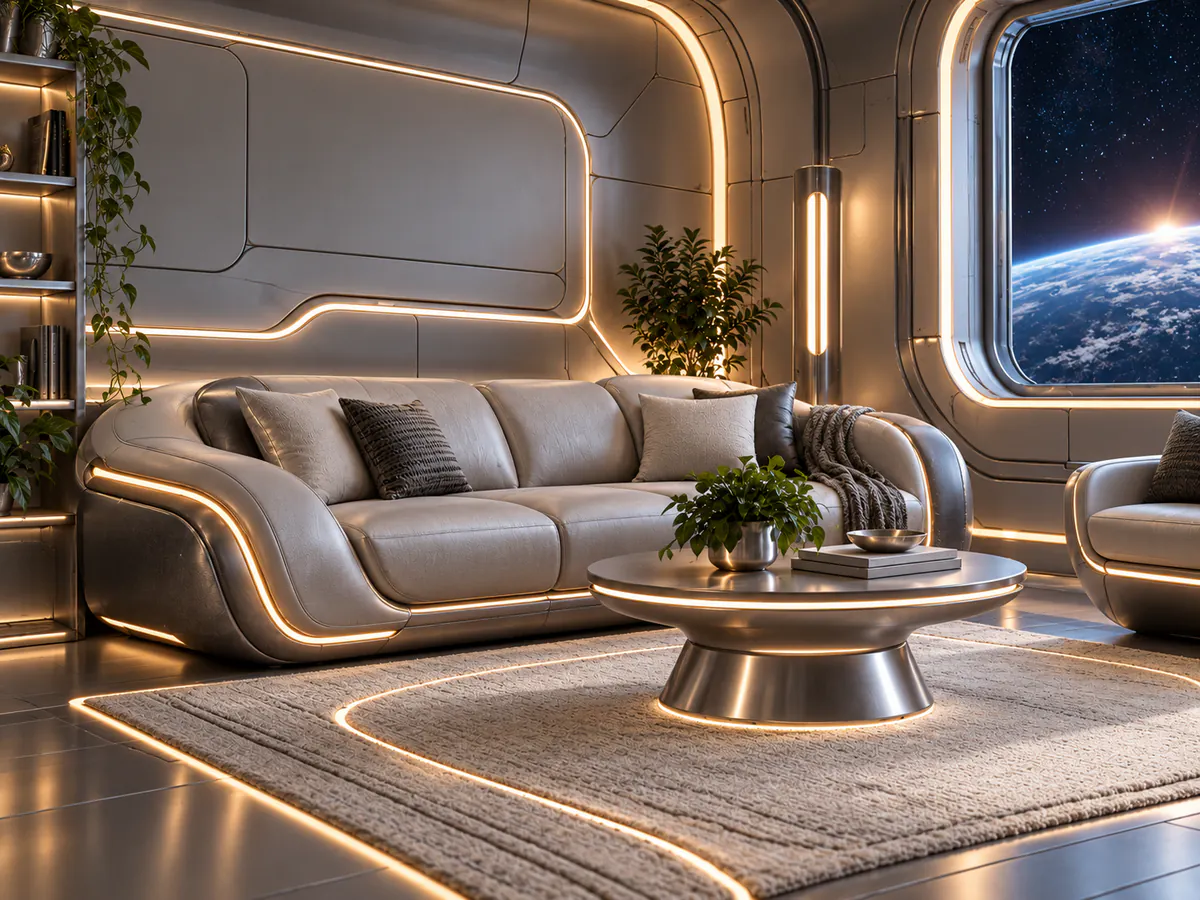
If furniture positions matter, start with Subtle and name the fixed elements. Bold may be useful for exploring a different visual world, but it is less suitable for documenting a real room.
What a reference image does
The reference supplies shapes, colors, perspective and relationships between objects. A clear source usually gives you more useful constraints than a low-resolution picture with an ambiguous subject. Upload one JPG, PNG or WebP up to 10 MB. Imgraft resizes its longest edge to 2048 pixels before generation.
A standard edit uses one source; the AI clothes changer also accepts a garment reference for authorized adult photos. For line-based treatments, try image to sketch. For a scratched or faded print, start with AI photo restoration. To continue an edit, choose Refine this: the current result becomes the next reference. Each step is a separate generation, and each can introduce small differences.
Match the model to the output you need
| Mode | Best for | Output size | Generation credits | Watermark |
|---|---|---|---|---|
| Standard | Everyday edits | 1K | Free try | Yes |
| HD | Detailed restyling | 1K | 1 | No |
| HD | Detailed restyling | 2K | 2 | No |
| HD | Detailed restyling | 4K | 3 | No |
Try an edit for free with Standard, or choose HD for fuller detail and larger downloads. Start at 1K to compare the treatment with your source. Once you have a direction you like, select an output size for your presentation or layout. The table shows the credit cost beside each tier before you generate.
Imgraft is an independent product built on third-party AI models. See the AI usage policy for provider details. All results are AI-generated.
Compare model options and credit costs before choosing your output size.
How to Edit an Existing Image With AI Using Text Prompts
- Upload a clear image you own or have permission to edit.
- Write a custom prompt naming the change and the details to keep, or choose a style and add optional details. View full prompt shows the style instruction; Edit as custom makes the combined text editable.
- Confirm permission and generate. The model creates a new image from your reference and instructions.
- Compare the result with the original using the slider. Check shapes, faces and text before downloading or choosing Refine this.
Prompt example: "Change the room walls to warm white plaster; keep the window positions, sofa and camera angle." Avoid conflicting instructions, such as replacing a room while keeping every object untouched.
Preservation instructions are requests, not locks. Objects, lettering and other details may change. Return to the original if a refinement carries an unwanted change forward; use a conventional editor for pixel-exact corrections.
For product shots, the AI background changer starts with prompts asking to keep the product and replace the scene. If you need words for a reference first, describe an image as a prompt and check the generated text before editing.
Six prompt examples to start with
Restyle
Turn this photo into a loose watercolor painting on cold-press paper, soft washes, visible paper texture. Keep the exact layout.
Replace background
Place this object on a clean studio backdrop with soft side lighting and a gentle contact shadow.
Change season
Make it a snowy winter evening, warm light in the windows. Keep the same scene.
Restore old photo
Remove scratches, dust and fading. Add natural color while keeping the original scene.
Product studio shot
Place this product on a marble pedestal in a minimal studio, warm rim light, soft contact shadow.
Sketch to render
Turn this architectural sketch into a realistic render at golden hour, keeping the same design and angle.
Common failures and fixes
The result changes too much.
Return to the original, choose Subtle and name the objects that should keep their position. Refining an already changed result can carry those changes forward.
The style is too weak.
Name materials and marks you can see: cold-press paper, loose watercolor washes or graphite hatching. Try Balanced before adding several competing styles.
Small details look wrong.
Larger output is not a repair guarantee. Use a clearer source, narrow the request and check the result with the comparison slider. Product labels and architectural dimensions need manual review.
A request is rejected.
Safety checks apply to every plan. Do not try to bypass them. Face manipulation and adult content are prohibited; use the support address in the Acceptable Use Policy if you think a review was mistaken.